> For the complete documentation index, see [llms.txt](https://vu-custom.gitbook.io/vu-custom/llms.txt). Markdown versions of documentation pages are available by appending `.md` to page URLs; this page is available as [Markdown](https://vu-custom.gitbook.io/vu-custom/integrations-connections/vu-x-shopify/installation-guide-vu-customs-available-otb-styles-for-shopify.md).
# Installation Guide - VU Custom's Available OTB Styles for Shopify
This guide outlines the steps to install OTB styles into your Shopify store. Follow the instructions below to duplicate your theme, install the code, and configure your preferred template.
## Part 1: Installation Guide
Before making changes to your code, it is highly recommended to create a backup of your live theme.
### Prerequisites
Before starting, ensure you have the source code files.
{% file src="/files/2L00AsuS7AivwfjBRR0i" %}
### Steps to Install OTB Styles
{% stepper %}
{% step %}
#### Backup Your Theme
{% endstep %}
{% step %}
#### Open Code Editor
{% endstep %}
{% step %}
#### Create Necessary Files
{% endstep %}
{% step %}
#### Add the Code
{% endstep %}
{% step %}
#### Activate the Section
{% endstep %}
{% endstepper %}
#### **Step 1: Backup Your Theme**
1. Log in to your **Shopify Dashboard**.
2. Go to **Online Store > Themes**.
3. Click the **three dots (⋯)** next to your current live theme.
4. Select **Duplicate**. This creates a safe backup copy to work on.
#### **Step 2: Open the Code Editor**
1. On the duplicated theme you just created, click the **three dots (⋯)** again.
2. Select **Edit Code** to open the theme file editor.
#### **Step 3: Create Necessary Files**
You need to create four specific files - three within the **Snippets** folder and one in the **Sections** folder.
**In the Snippets folder:**
1. Scroll down to the "**Snippets**" folder and click "**Add a new snippet**".
2. Name it: **template-1.liquid**
3. Repeat to create: **template-2.liquid**
4. Repeat to create: **template-3.liquid**
**In the Sections folder:**
1. Scroll down to the "**Sections**" folder and click "**Add a new section**".
2. Name it: **Vu-custom.liquid**
#### **Step 4: Add the Code**
1. Open the folder on your computer where you extracted the files.
2. Open the file corresponding to **template-1**. Copy **all** contents and paste them into the **template-1.liquid** file in Shopify.
3. Repeat this process for **template-2.liquid**, **template-3.liquid**, and the **vu-custom.liquid** section file.
4. Click **Save** in the top right corner after pasting code into each file.
#### **Step 5: Activate the Section**
1. Exit the code editor and return to the **Themes** dashboard.
2. Click **Customize** on your duplicated theme.
3. Navigate to the **Product Template** (using the dropdown selector at the top center of the editor).
4. On the sidebar, click **+ Add section**.
5. Search for and select **"VU Customizer"**.
***
## Part 2: Configuration & Settings
Once the section is added, click on "VU Customizer" in the sidebar to open the settings panel. You can switch between **Template 1**, **Template 2**, or **Template 3** via the dropdown menu.
### **Choosing Your Layout**
Select the template that best fits your product visualization needs:
#### **Template 1**
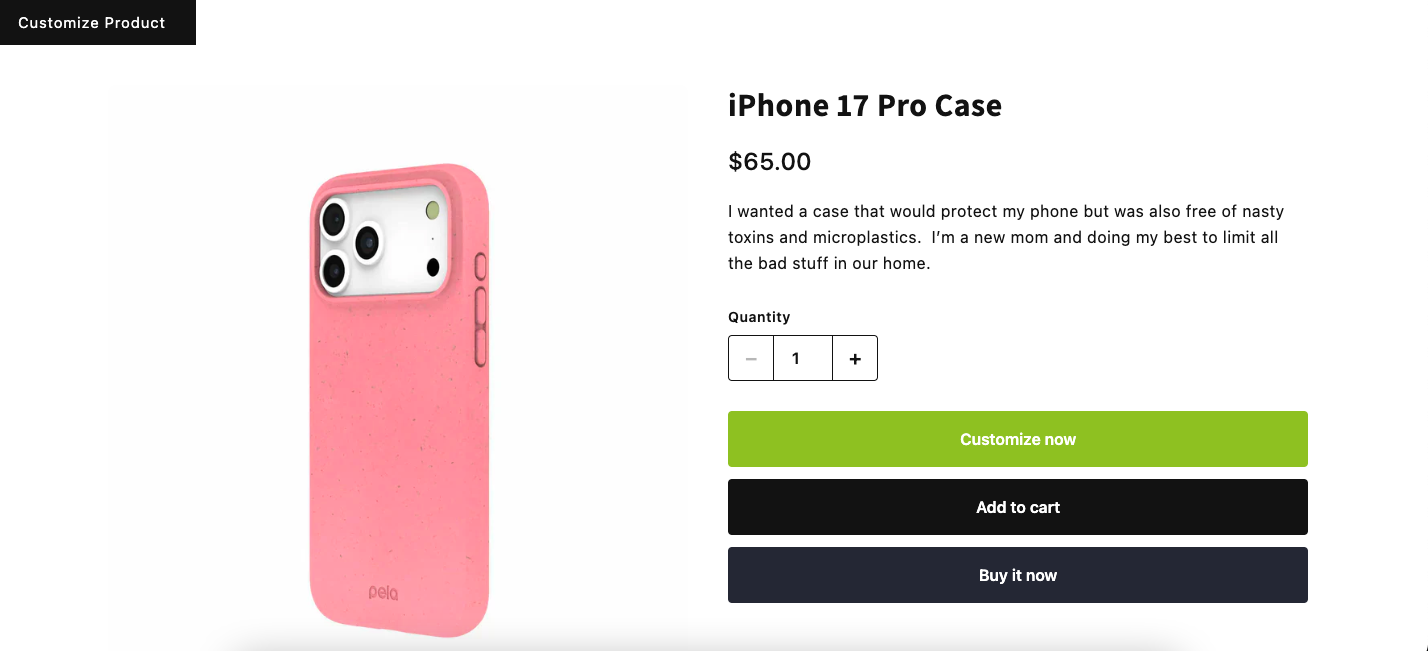
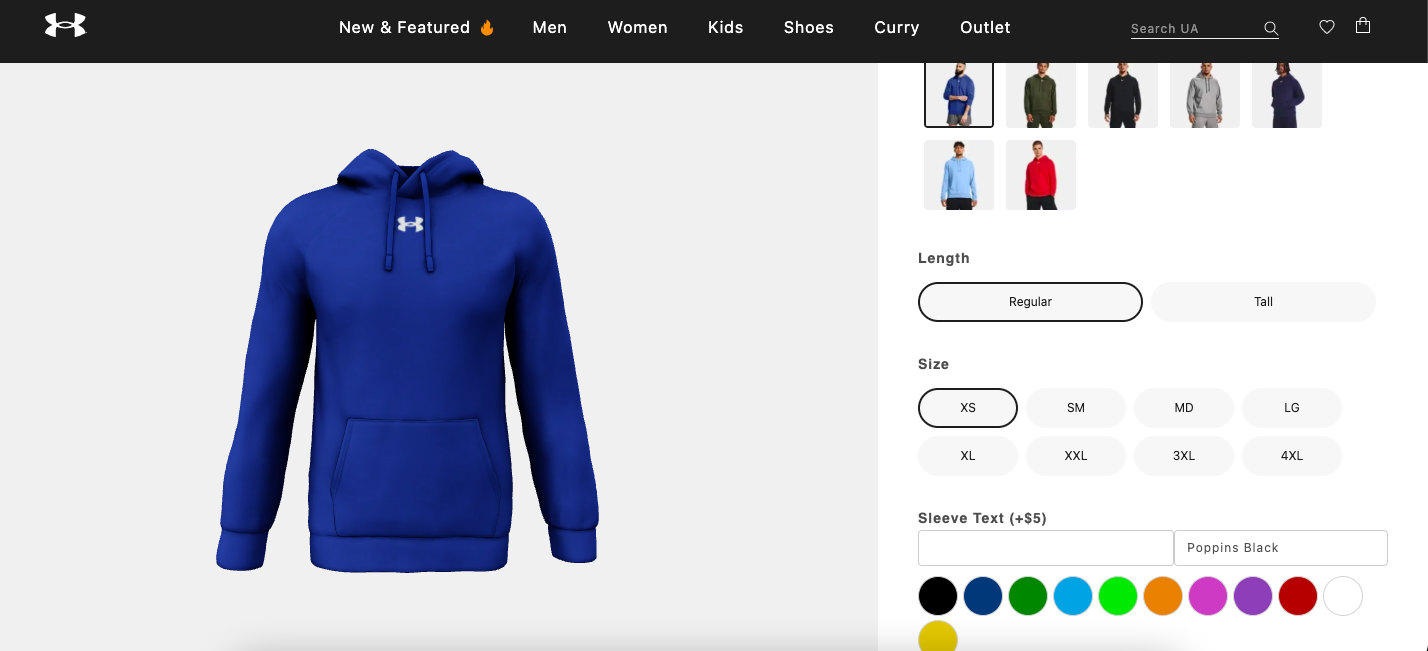
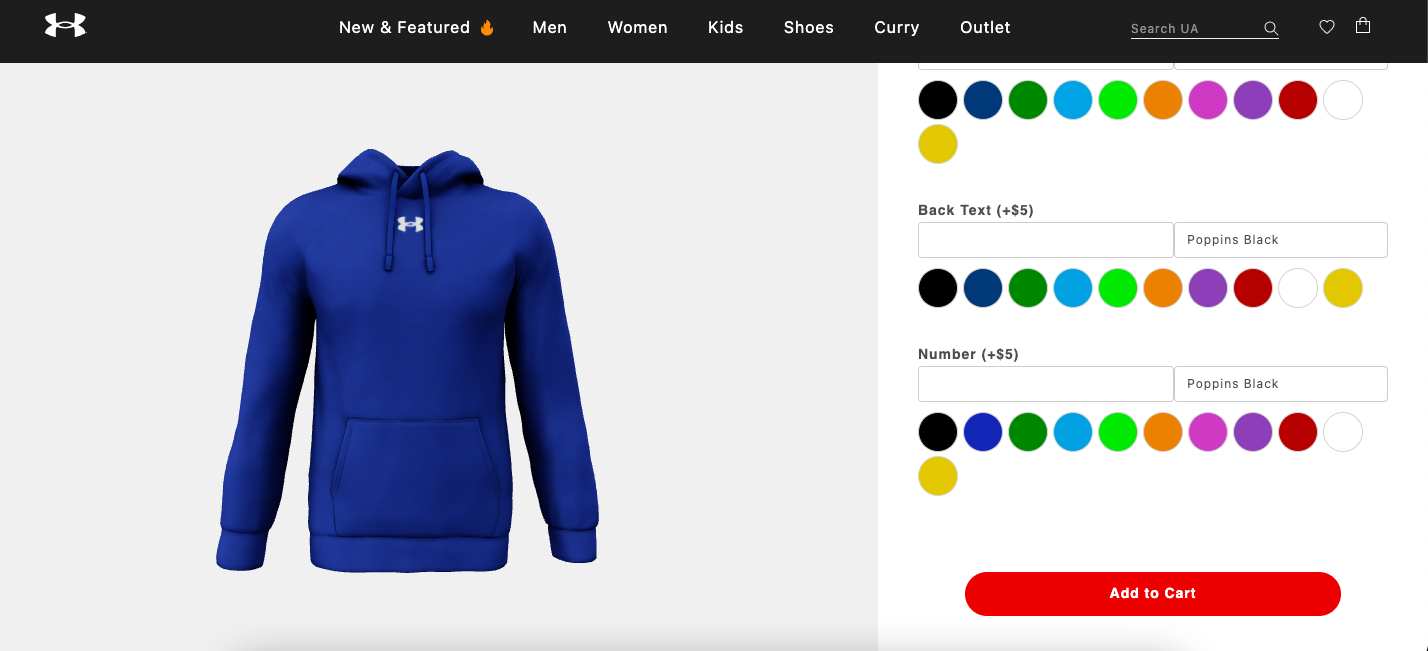
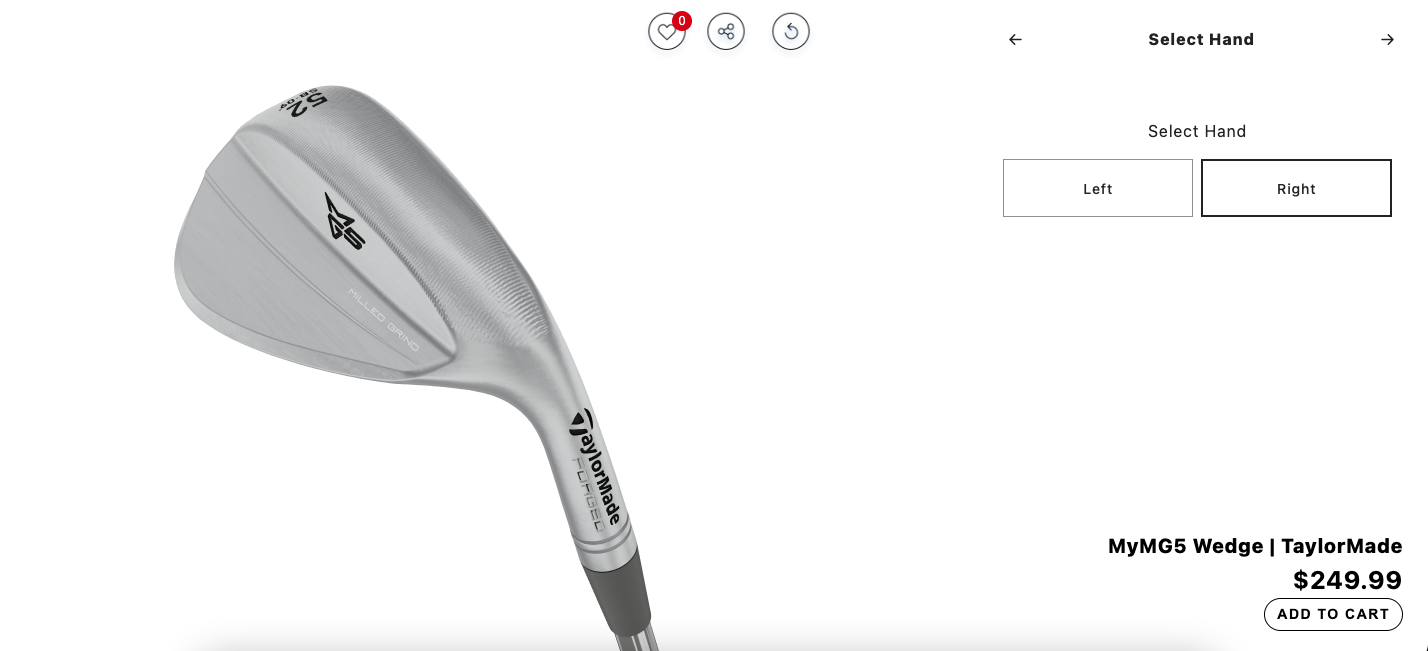
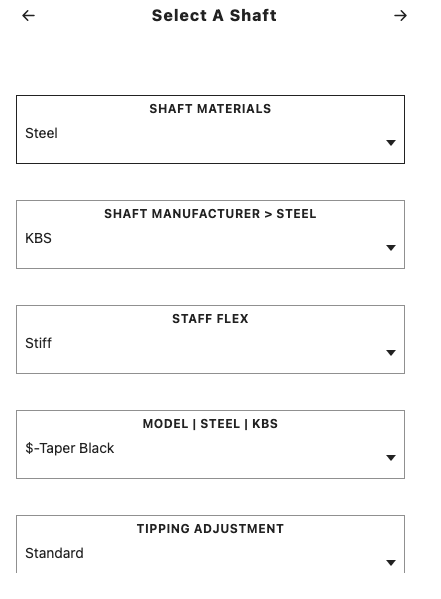
This template allows you to launch the customizer using the Customize Now button:
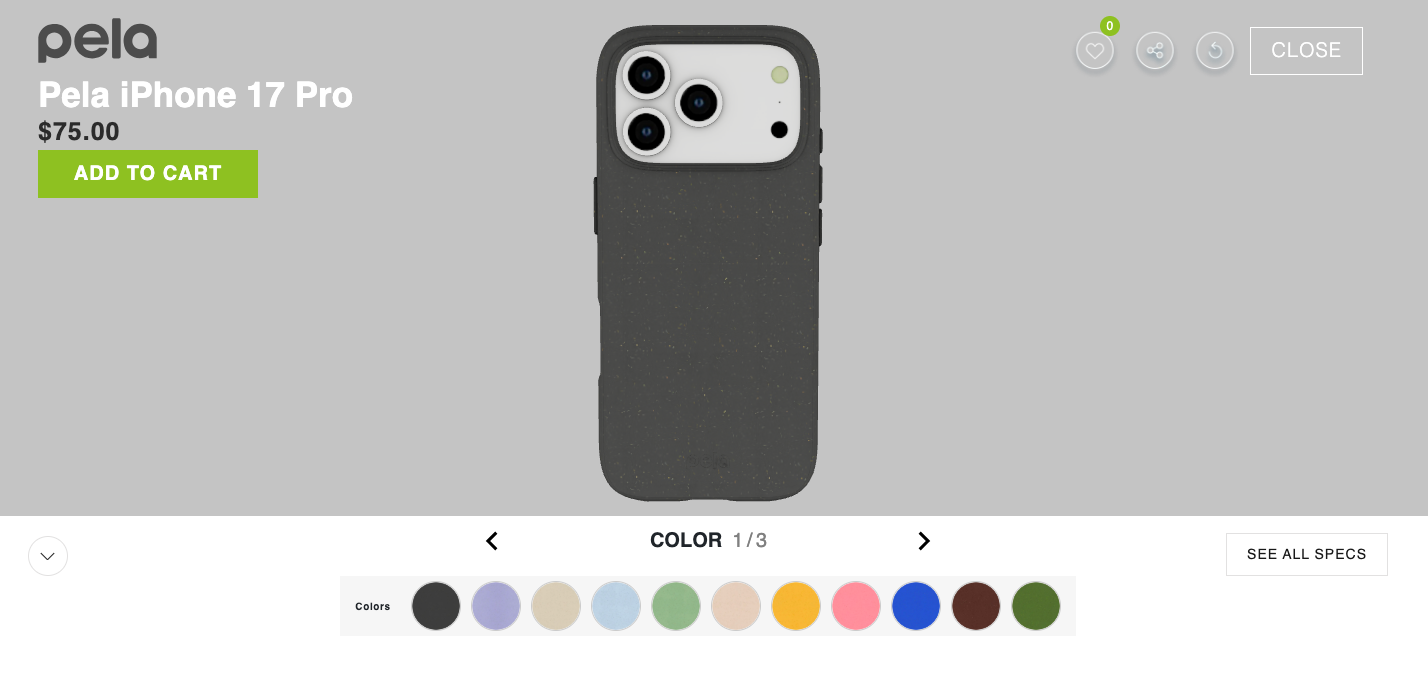
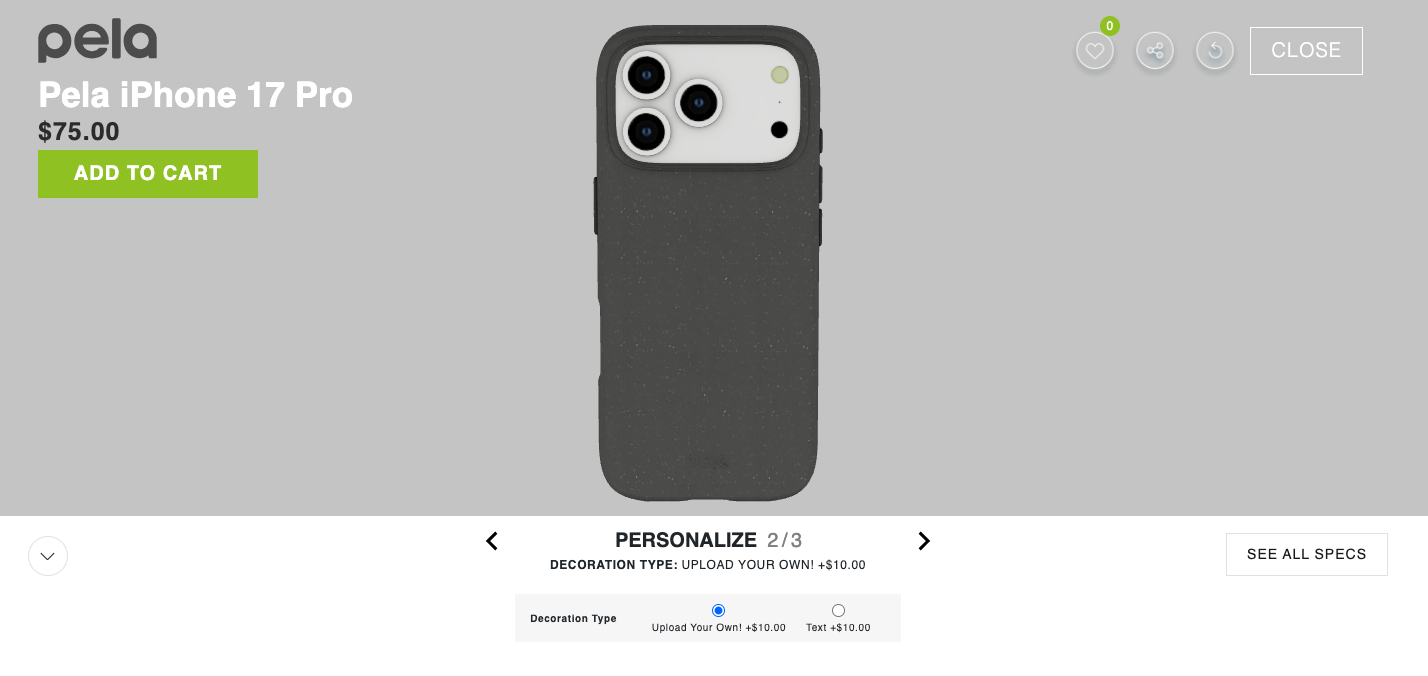
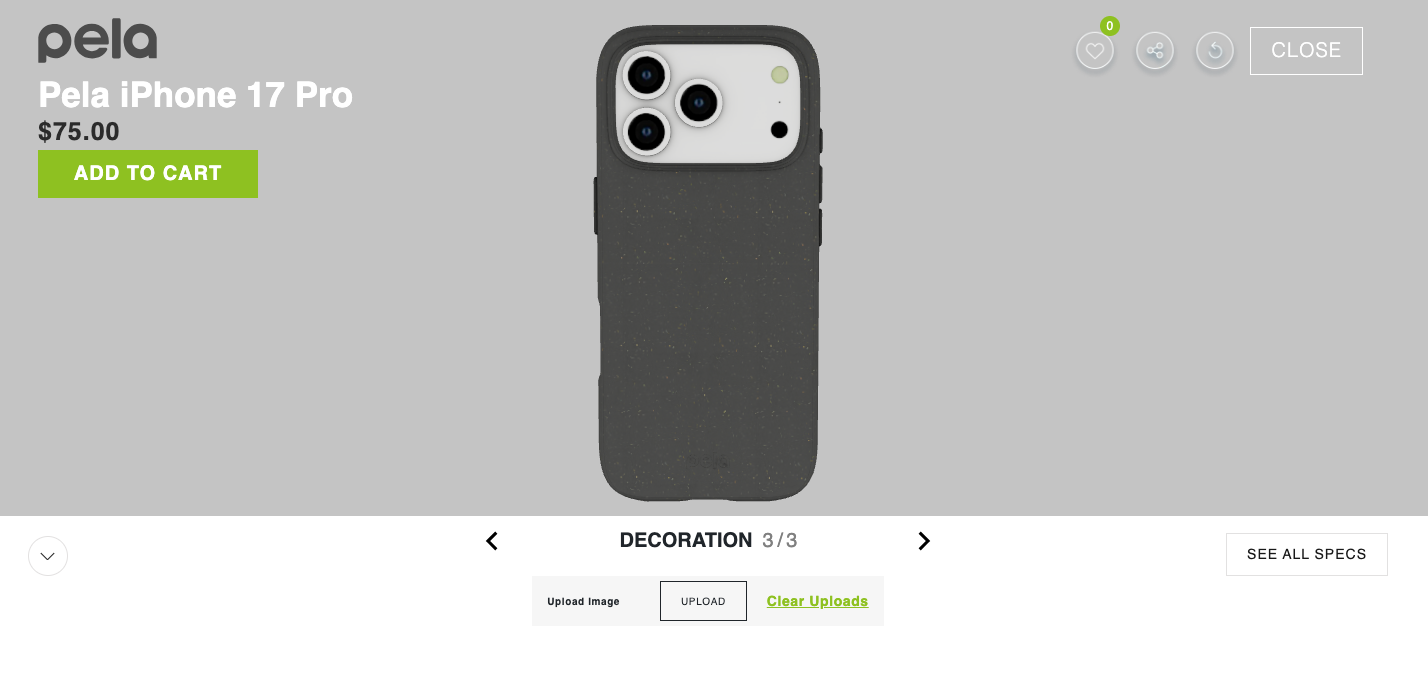
Customizer is loaded and displayed to the user as per the layout below:
#### **Template 2**
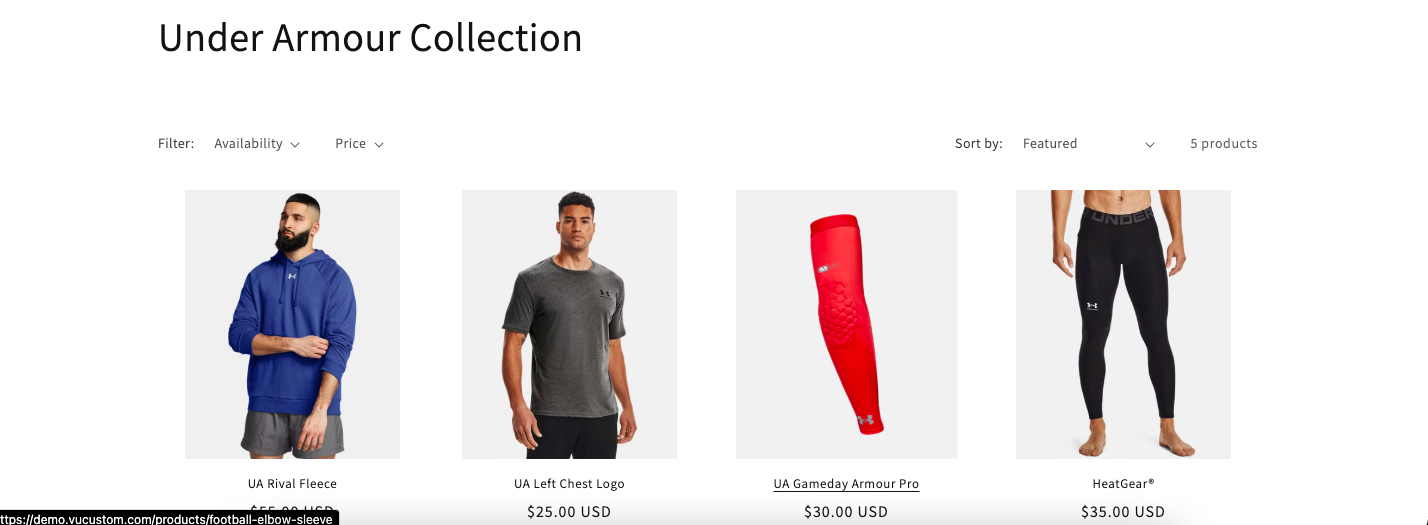
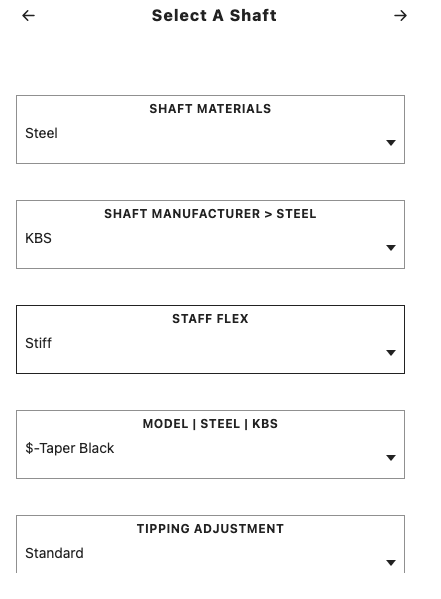
This template allows the user to view a collection. Once a collection item is selected - customizer is loaded to display the product customiziation options.
#### **Template 3**
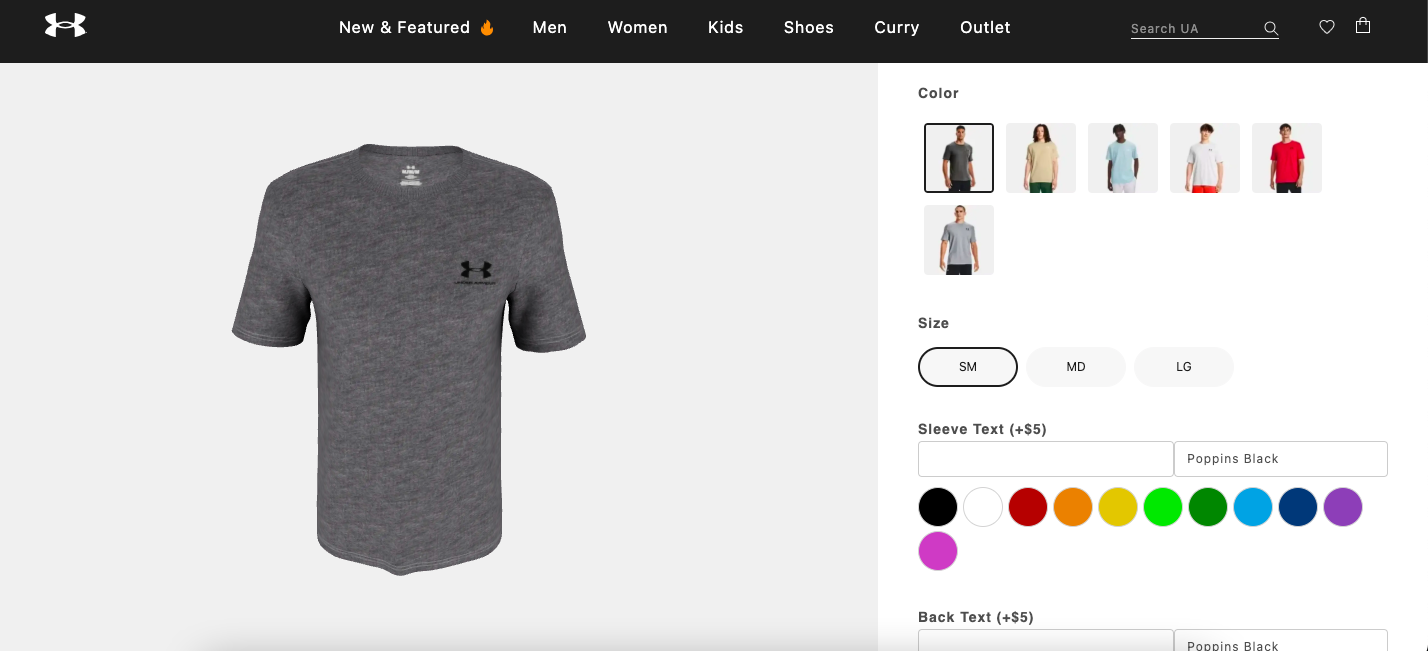
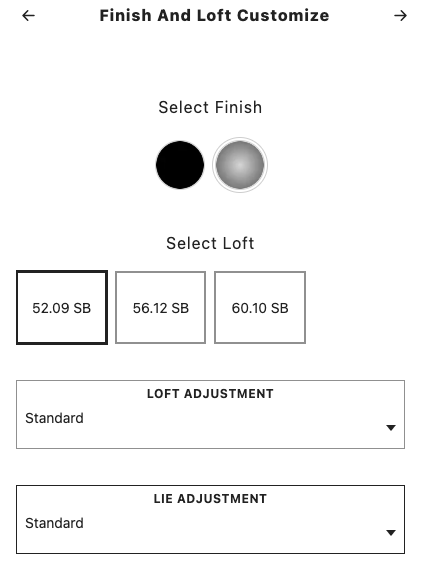
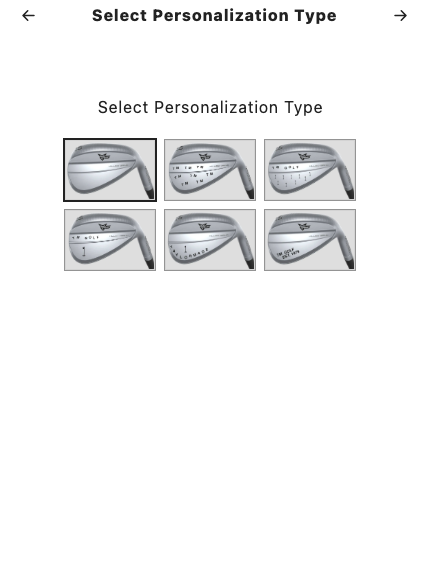
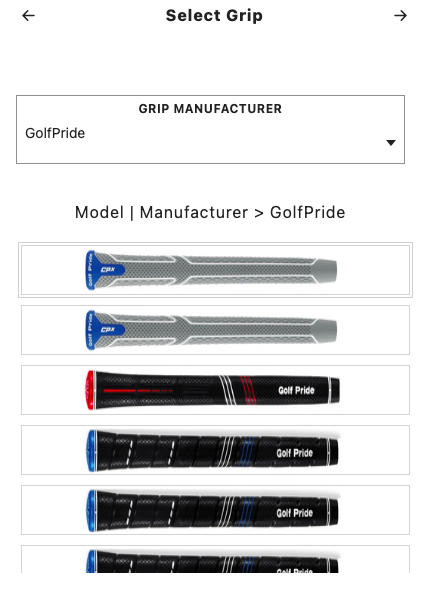
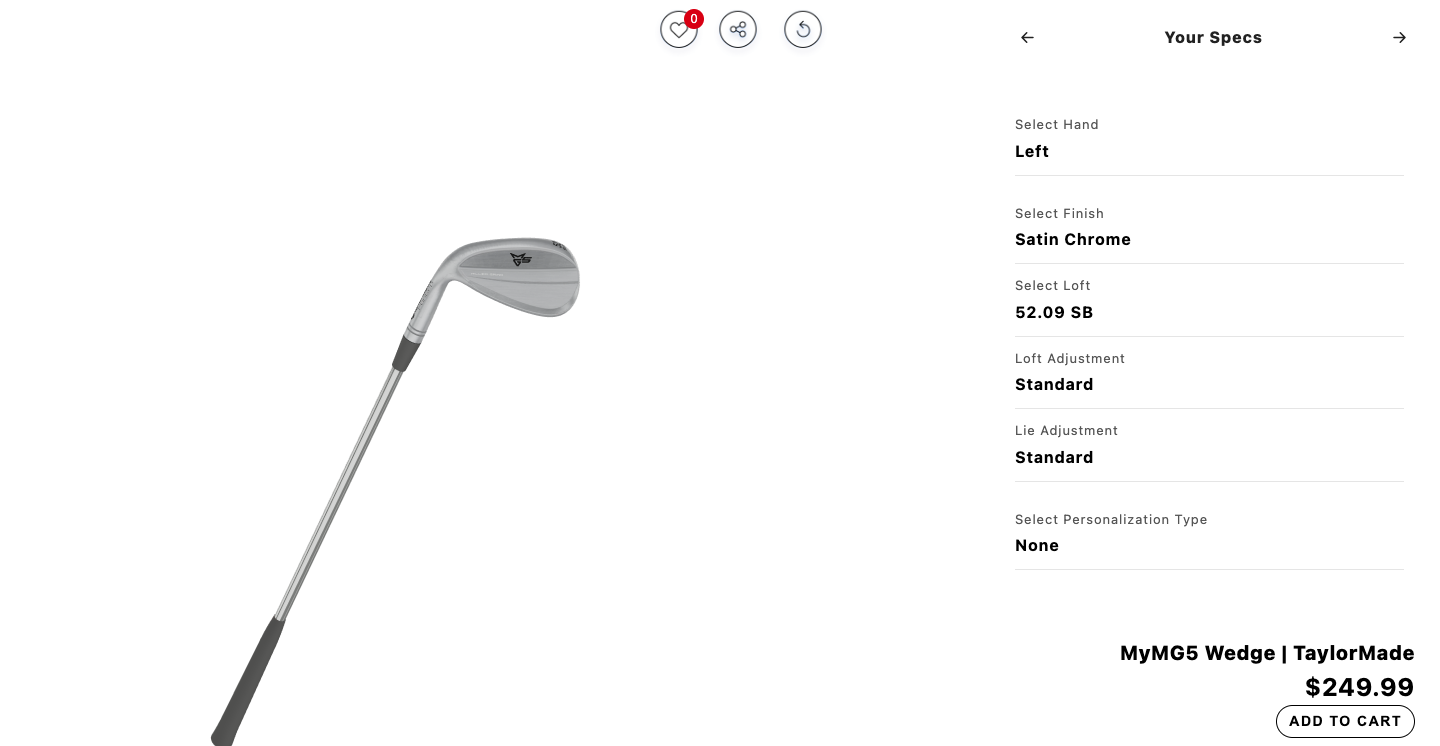
This template allows users to customize the product using the tabs on the right side of the page.
After all the input from the user is collected in different tabs, the details of the customisation are displayed to the user. The user can verify and add the product to cart.
***
#### **Common Settings (All Templates)**
These settings apply regardless of which template you select:
* **Background Image:** Set an image for the customizer interface background.
* **Logo:** Upload the logo displayed within the customizer.
* **Brand Color:** The primary color used for buttons and selected items.
* **Secondary Background Color:** Background color for selectors and summary items.
* **Typography:**
* Heading Font & Body Font: Select font families for the customizer text.
* Text Color: Primary text color.
* Secondary Text Color: For text on darker backgrounds.
* Title Size: Adjusts the font size of the main title.
* **UI Controls:**
* Buttons & Selector Radius: Controls the roundness of button corners and dropdowns.
* Show/Hide Controls: Toggle visibility for "Save", "Share", and "Reset" buttons.
* Hide Tabs: Enter the number of specific tabs to hide (separated by commas).
***
#### **Template-Specific Settings**
Each template has unique settings that only appear when that template is selected.
**Template 1 Specifics:**
* **Image Size:** Adjusts the display size of images in the customizer.
* **Icons:** Toggles to show or hide the **Drag** and **Zoom** icons.
**Template 2 Specifics:**
* **Brand Logo:** Sets the specific logo displayed on the customizer loading screen.
**Template 3 Specifics:**
* **Header Height Override:** Adjusts modal position relative to headers (set to 0 to auto-detect).
* **Brand Logo:** Shown on the loading screen and bottom navigation rail.
* **Button Styling Grid:** Extensive color controls for the Template 3 button grid, including background, text, hover states, and border colors.
***
## Part 3: Go Live
1. Once you have configured the settings and are happy with the preview, return to your **Shopify Dashboard**.
2. Locate your customized duplicate theme.
3. Click **Publish** to make VU Custom live on your store.